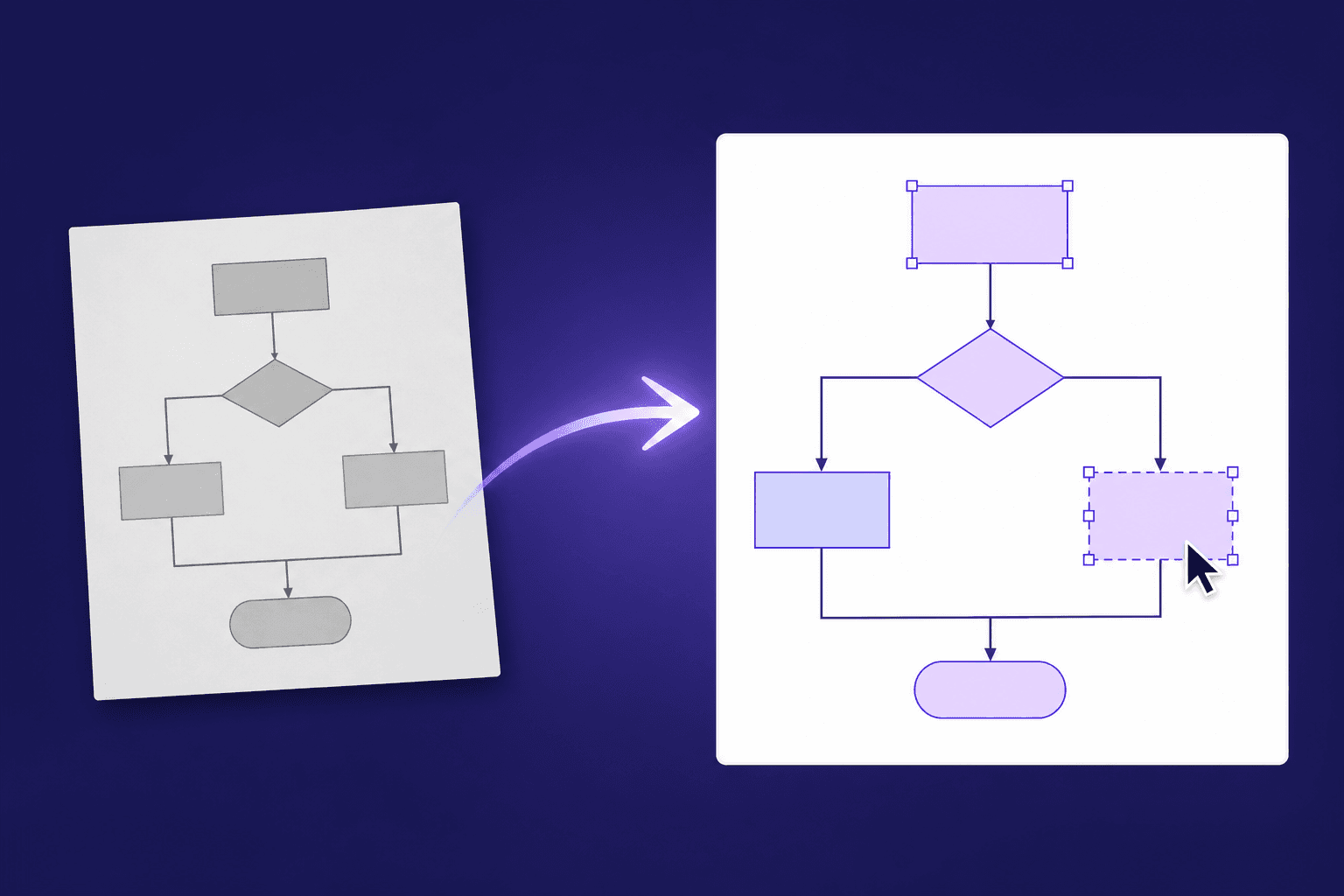
How to Convert a Diagram Image into an Editable Visio File
Turn any flowchart screenshot, PNG, or JPG into a fully editable Visio (VSDX) file in about half a minute — real shapes, live connectors, editable text.
Every team has one: a flowchart that exists only as a screenshot. The person who drew it left, the original file is lost in an old drive, or it arrived in a PDF from a vendor. The process it describes is still current — but the moment anything changes, you're stuck. You can't move a box, fix a label, or reroute an arrow in a picture.
The traditional answer is to redraw the whole thing from scratch, which for a mid-sized diagram costs anywhere from 30 minutes to a few hours of careful, mind-numbing work. This guide shows a faster way: converting the image itself into a real, editable Visio (VSDX) file — and what to expect from the result.
Why you can't just edit a screenshot
A PNG or JPG of a flowchart contains no shapes. It's a grid of colored pixels that merely looks like boxes and arrows. Visio, PowerPoint, and draw.io, on the other hand, work with structured objects: a rectangle with a size and a fill color, a text label attached to it, a connector glued to two shapes.
That's why pasting a screenshot into Visio gets you nothing but a static picture floating on the page. To make it editable, someone — or something — has to rebuild the structure: recognize each box, read every label, and trace which arrow connects what to what.
This is exactly what LayerBack automates. You upload the image; AI reconstructs the diagram as native, structured shapes; you download a file that behaves as if it had been drawn in Visio all along.
What goes in, what comes out
Here's a real conversion, unedited. The input is a flat image of an order-fulfillment flowchart — the kind of thing you'd find in a process doc or a slide export:
And this is the converted result, opened in an editor:
It looks nearly identical — that's the point — but everything about it is now different under the hood:
- Every box is a real shape. Select it, drag it, resize it, recolor it.
- Every label is real text. Double-click and retype — no more covering old text with white rectangles.
- Every arrow is a live connector. Move a shape and its connectors follow, exactly like connectors you drew yourself.
- Branches survive. The decision diamond, its Yes/No edge labels, and the merge point all come through as proper diagram logic.
Step by step: image to VSDX in about half a minute
1. Grab the best image you can
Conversion quality tracks image quality. A few practical tips:
- Prefer the original export or a full-resolution screenshot over a photo of a screen.
- Crop to the diagram. Surrounding UI, browser chrome, or slide furniture just adds noise.
- If the source is a PDF, zoom in before screenshotting so text is crisp. As a rule of thumb, if you can comfortably read every label, so can the converter.
PNG, JPG, and WebP all work, up to 20 MB.
2. Upload and convert
Go to the converter, drop the image in, and press Convert. You'll see the progress as the diagram is analyzed and rebuilt. A typical flowchart takes around 30 seconds; a dense architecture diagram somewhat longer.
There's nothing to configure — no tracing settings, no shape libraries to pick. Converting and previewing is free with no sign-in; downloading or editing a conversion costs 10 credits.
3. Check the preview
When the conversion finishes, you get a side-by-side preview against your original. Give it a quick scan:
- Are all the boxes there?
- Do the labels read correctly?
- Do the arrows connect the right pairs?
For clean sources, the answer is usually yes across the board. If the source was blurry or hand-drawn, expect to spend a minute tidying up afterwards — still a fraction of redrawing.
4. Fix small things in the built-in editor (optional)
You don't need to leave the browser for touch-ups. Edit online opens the converted diagram in a full drag-and-drop editor: move shapes, rewrite labels, add the box that was missing from the original, restyle colors. When you're done, one click regenerates all download files with your edits included.
5. Download the VSDX
Click Download VSDX and open the file in Visio — desktop or web. Everything is native: shapes appear in the selection pane, connectors reroute when you drag things around, text is text. From Visio you can restyle the whole diagram with themes, print it, or drop it into your team's process library.
One nice detail: the conversion also produces PowerPoint (PPTX), draw.io, and SVG versions of the same diagram at no extra cost. The PPTX contains real PowerPoint shapes — not a pasted image — so you can present and edit the same diagram in slides without a second conversion. No Visio license? The draw.io file opens in the free draw.io editor.
What converts well
LayerBack is built for the diagrams teams actually pass around:
- Flowcharts and process maps — including decision branches and swim-lane-style layouts
- Org charts — boxes, titles, reporting lines
- Architecture and network diagrams — components, groupings, labeled links
- UML and ER diagrams — class boxes, entities, relationship lines
Low-contrast photos of whiteboards, heavily stylized infographics, and freehand sketches convert too, but expect more cleanup — the closer the source is to "a real diagram, photographed flat," the better the result.
Frequently asked questions
Is the output really editable, or is it an image traced into vectors? Really editable. The output contains native Visio shapes and glued connectors, not vector outlines. Drag a box in Visio and the arrows follow.
Does it handle text in other languages? Yes — labels are recognized and carried over as editable text, including non-Latin scripts like Chinese.
What about my data? Uploads are used only to produce your conversion, and files are automatically deleted after 72 hours. See the privacy policy for details.
What does it cost? Converting and previewing are free with no sign-in. The first download or edit of a diagram asks you to sign in and uses 10 credits, which unlocks every format and edit of that diagram; failed conversions are never charged. Subscriptions start at $20/month ($10/month billed yearly) for 1,000 credits. Full details on the pricing page.
Try it on your own diagram
The fastest way to judge a converter is to feed it the diagram you actually need. Upload it here — no sign-in needed to convert and preview — and about thirty seconds from now you'll know exactly how much redrawing you just avoided.
Author

Categories
More Posts
How to Resize, Change, and Unlock Shapes in Visio
Drag handles, set exact sizes, make shapes match, swap a shape for another, and fix the cases where a Visio shape refuses to resize.
Best Image to Editable Diagram Converters Compared (2026)
An honest comparison of tools that turn diagram images into editable files — what each converts, what you can edit afterwards, and what they cost.
Can ChatGPT Create Visio Files? (No — Here's What Actually Works)
ChatGPT cannot output .vsdx files or turn a diagram image into an editable Visio diagram. Here's what it can do, and the fastest working alternative.
Newsletter
Join the community
Subscribe to our newsletter for the latest news and updates