
How to Resize, Change, and Unlock Shapes in Visio
Drag handles, set exact sizes, make shapes match, swap a shape for another, and fix the cases where a Visio shape refuses to resize.
Resizing a shape in Visio is usually one drag. The trouble starts when you need twelve boxes to be the same size, when the text refuses to follow the box, or when a shape simply won't budge no matter which handle you pull. This guide covers the everyday moves first, then the fixes for shapes that don't behave.
Resize a shape by dragging
- Click the shape once. Small square selection handles appear around it.
- Drag a corner handle to resize the shape proportionally.
- Drag a side handle to change only the width or only the height.
Connectors that are glued to the shape stay attached and reroute as the box grows or shrinks, so you don't have to fix arrows afterwards.
Set an exact size
When "roughly the same" isn't good enough, type the numbers instead:
- Select the shape.
- Go to View > Task Panes > Size & Position. A small window opens at the bottom of the screen.
- Type the Width and Height you want and press Enter.
The window stays open while you click other shapes, so you can walk through a diagram and correct sizes one after another.
Make several shapes the same size
- Click the first shape, then Shift+click the others (or drag a selection box around them).
- Open Size & Position as above.
- Type a Width and Height once. Every selected shape takes the new size.
This is the fastest way to tidy up a flowchart where boxes were drawn by hand at slightly different sizes.
Why the text doesn't grow with the box
Resizing a shape changes the box, not the font. Text keeps its point size, so a wider box just gets more empty space around the label. If you want larger text:
- Select the shape and change the font size on the Home tab, or
- Select all the shapes you care about first and change the font size once.
To move or reshape only the text area, use the Text Block tool (under the Text tool on the Home tab) and drag the text's own handles.
Change a shape into a different shape
You don't have to delete a box and redraw it as a diamond. Visio can swap the outline while keeping everything else:
- Select one or more shapes.
- On the Home tab, click Change Shape and pick a shape from a stencil.
The text, position, size, and connections are preserved. Change Shape is available in Visio 2013 and later, including Microsoft 365.
When a shape won't resize
If you drag a handle and nothing happens, or only part of the shape reacts, work through this list in order. Each one takes under a minute to check.
1. The shape is locked
Locked shapes show gray handles or a small padlock. To unlock:
- Enable the Developer tab if you don't see it: File > Options > Customize Ribbon, then tick Developer.
- Select the shape and click Developer > Protection.
- Clear Width, Height, and, if you want free resizing, Aspect ratio. Click OK.
2. The layer is locked
Shapes on a locked layer can't be changed at all. Go to Home > Layers > Layer Properties and clear the Lock checkbox for the layer the shape belongs to.
3. The shape is inside a group
Clicking once on a grouped diagram selects the whole group. Click the same shape a second time to select just that member, then resize it. If you'd rather work with the pieces directly, select the group and press Ctrl+Shift+U to ungroup.
4. The text moves but the box stays put
This one looks strange: you drag a handle, the selection box and the label move to the new size, but the visible rectangle stays exactly where it was. It means the shape's outline was drawn with fixed measurements instead of following the shape's width and height. It usually happens to shapes that came out of another application or a file converter.
The quick fix is Change Shape: select the stubborn shape, click Home > Change Shape, and choose a plain rectangle (or whatever the shape should be). Visio replaces the outline with a normal one and keeps your text and position. From then on it resizes like any other shape.
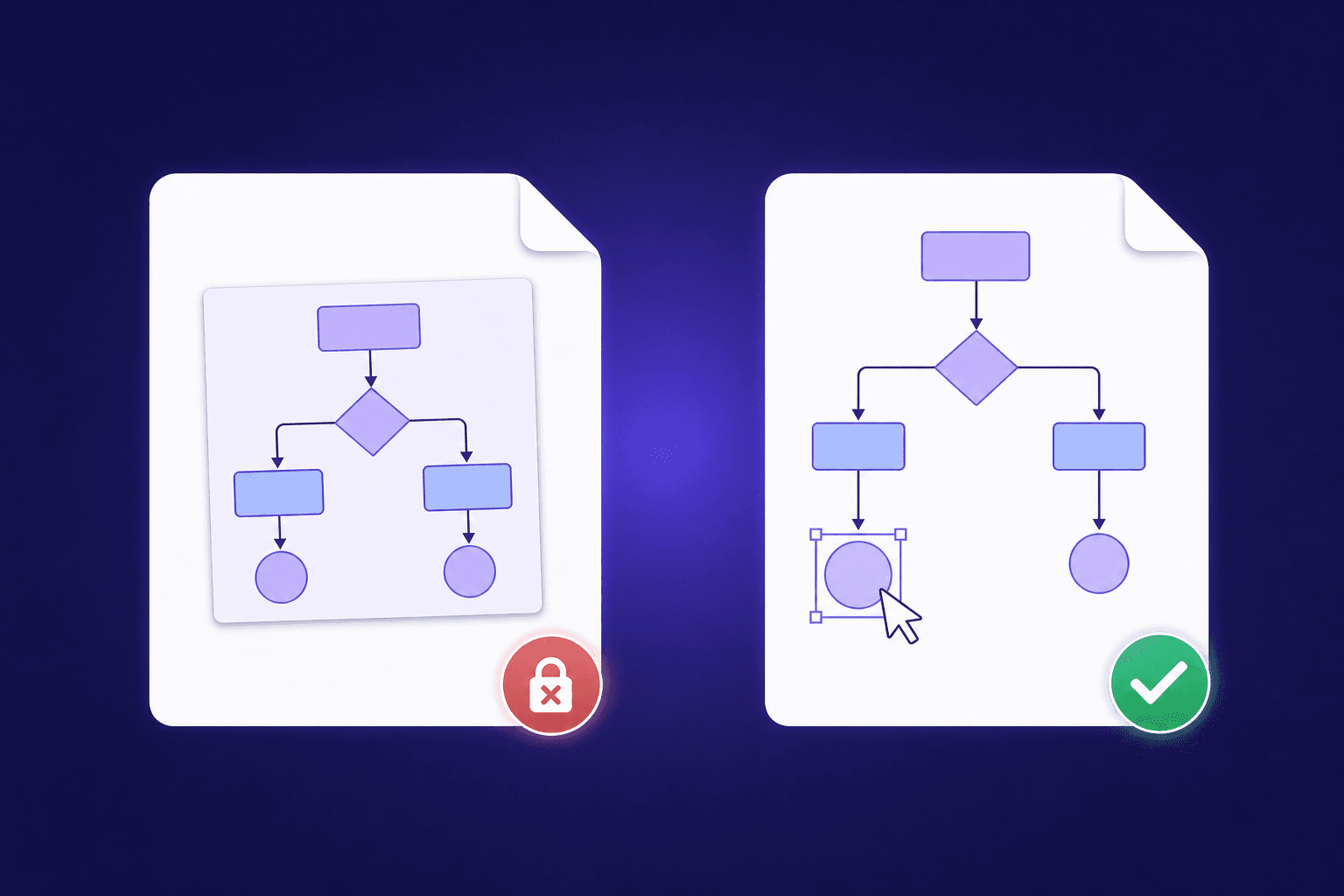
If you're bringing diagrams into Visio from images or screenshots, the cleaner path is to use a converter that builds native Visio shapes in the first place. Files from LayerBack's image to Visio converter come out with regular, resizable shapes and glued connectors, so you skip this step entirely.
FAQ
How do I resize a shape without distorting it? Drag a corner handle rather than a side handle. Corner handles keep the width-to-height ratio.
Can I resize the whole drawing at once? Press Ctrl+A to select everything, then drag a corner handle of the selection. All shapes scale together and connectors stay attached. Text keeps its font size, so adjust that afterwards if needed.
Why did the arrows stay connected after I resized a box? Because they're glued to the shape. Glued connectors follow the shape wherever its edges go. If an arrow didn't follow, it wasn't glued: drag its endpoint onto the shape until the connection point highlights.
Is there a keyboard shortcut for exact sizing? No, but the Size & Position window is the practical equivalent. Keep it open and tab between Width and Height.
Does resizing change the shape's connection points? No. Connection points are defined relative to the shape, so they move with the edges.
Author

Categories
More Posts

Best Image to Editable Diagram Converters Compared (2026)
An honest comparison of tools that turn diagram images into editable files — what each converts, what you can edit afterwards, and what they cost.

Can ChatGPT Create Visio Files? (No — Here's What Actually Works)
ChatGPT cannot output .vsdx files or turn a diagram image into an editable Visio diagram. Here's what it can do, and the fastest working alternative.
Why Most 'PNG to VSDX' Converters Don't Give You Editable Shapes
Generic file converters embed your picture inside a Visio file — they don't rebuild it. Here's how to tell the difference, and how to get truly editable shapes.
Newsletter
Join the community
Subscribe to our newsletter for the latest news and updates