Ouvrir gratuitement un fichier VSDX en ligne
Ouvrez un fichier Visio sans disposer de Visio. Déposez le VSDX pour l’afficher et le modifier dans votre navigateur ; le fichier n’est jamais envoyé.
Try a sample file
Browse free Visio templatesDéposez un fichier Visio ici ou cliquez pour le choisir
Vous ne disposez que d’une image du diagramme ?
LayerBack reconstruit les images et pages PDF en fichiers VSDX modifiables avec des formes natives, des lignes connectées et du texte réel.
How to open a VSDX file without Visio
Choose the file from your device, then view, pan, zoom or edit it in the browser. No Visio installation is needed.
On Windows
Drag a .vsdx file into the viewer above, or click the file picker. You can view and edit it without installing Visio.
On Mac
Open this page in your browser and choose your VSDX file. No Windows virtual machine or Visio license is needed.
On a phone or tablet
Tap the file picker and select a VSDX from your device. Use a larger screen for detailed edits.
Without Visio
Use this free browser viewer, or import your VSDX into draw.io. You do not need a Microsoft account for this viewer.
What we tested, and what does not work
Tested on 2026-11-10 in Chromium on macOS with the files listed below. We had no copy of Microsoft Visio to compare against, so “works” means the pages, shapes and text appear and can be edited here, not that they match Visio pixel for pixel.
| File or feature | Result |
|---|---|
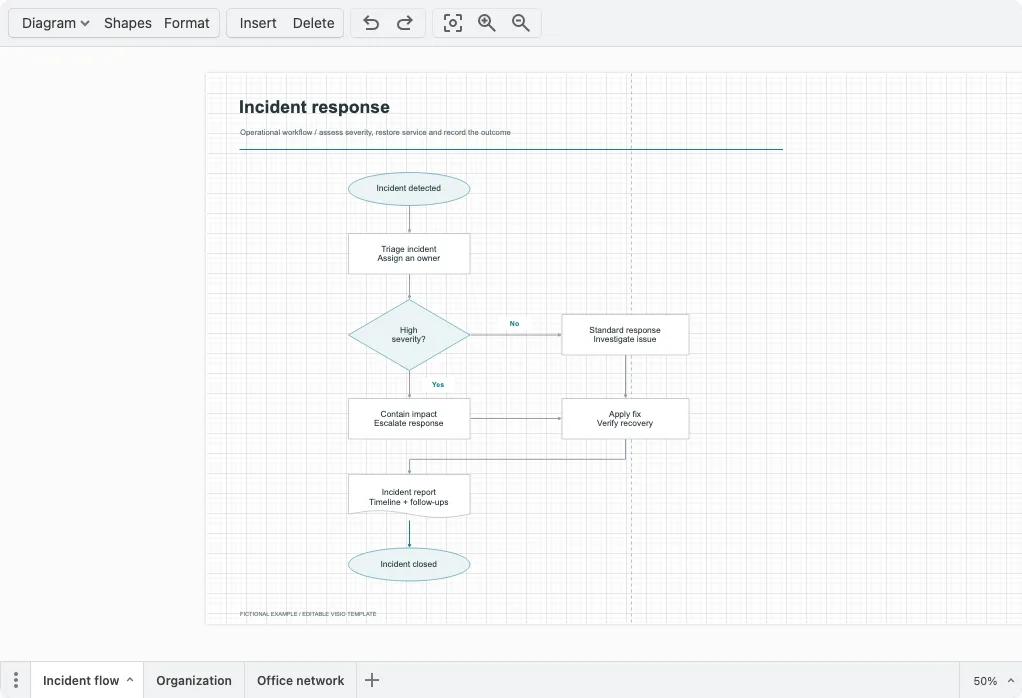
| Multi-page VSDX | Works. The three-page sample opens with all 3 pages as tabs (Incident flow, Organization, Office network). |
| Glued connectors | Stay attached: 8 of 8 in the sample and 12 of 12 in a LayerBack-converted flowchart. When you drag a shape, its connectors follow but are redrawn as straight lines. |
| Third-party VSDX test files | 4 small files from the test suite of libvisio (the open-source Visio importer used by LibreOffice) opened with their shapes, gradient fills and text. |
| Embedded pictures and icons | Shown. The server, database and cloud icons in a converted architecture diagram appear as images. |
| Chinese text | Shown. All 15 labels of a Chinese approval flowchart appear correctly. |
| Fonts | VSDX files do not contain fonts. If the font named in the file (often Calibri) is not installed, the browser substitutes its default font, so text can look different from Visio. |
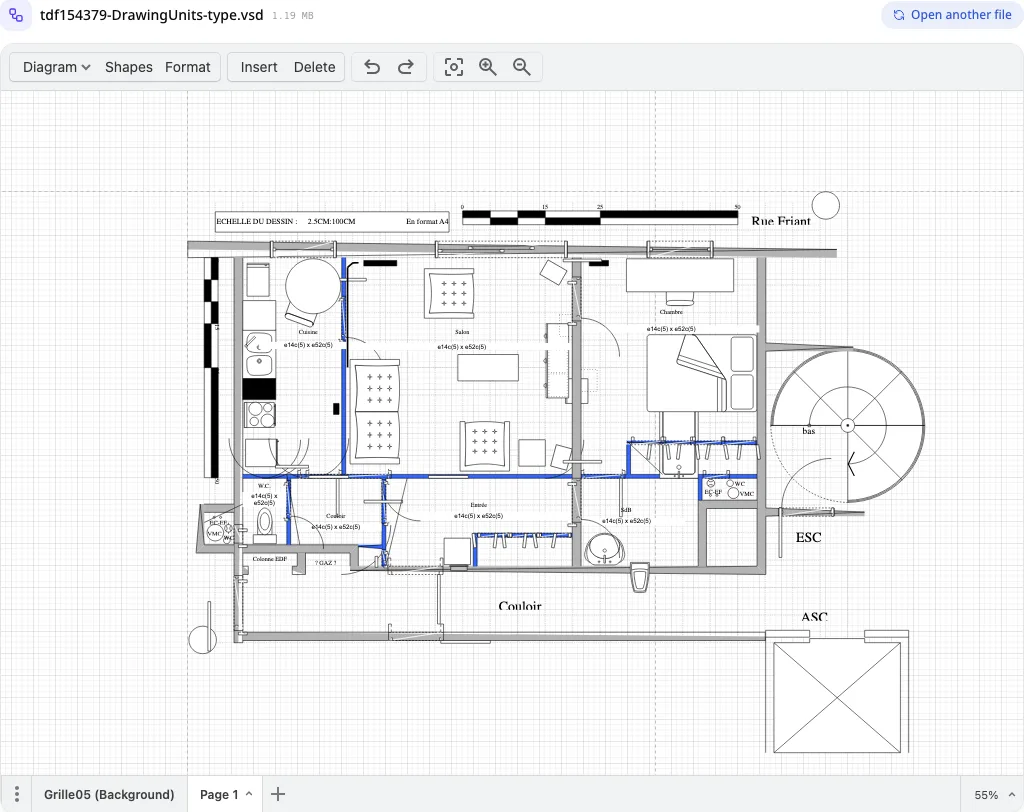
| Older .vsd files (Visio 2010 and earlier) | Open, converted to VSDX in the browser. Of 16 public test files (from the libvisio and Apache POI test suites), 13 opened with their content, 2 opened empty (LibreOffice Draw also shows them empty) and 1 damaged file showed an error. Shapes and text can be edited; a 2-page floor plan opened with 587 shapes, and all 20 pictures of a bitmap test file appeared. Connectors are often not attached: 14 of 50 lines in a UML diagram and 5 of 78 in the floor plan stay attached to their shapes; the rest open as free lines. |
| What does not convert well from .vsd | Compared with LibreOffice Draw: dimension and field values show as codes such as “e14c(5)” instead of numbers; embedded Excel charts and tables show a placeholder icon; labels on UML lines land away from their lines; hatch fills become solid colour; background pages open as their own tab. Visio 2003–2010 XML files (.vdx) are not supported. |
| Export as PNG, SVG or VSDX | Works, inside the browser: the three exports made no network request. |
| Export as → PDF | Works: it opens a print dialog in the tab; click Print and choose “Save as PDF”. The PDF is made by your browser and nothing is uploaded. |
Does the file leave your computer? What we measured
We recorded every network request in the browser while using this viewer on 2026-11-10:
- Opening 10 different .vsdx files: no request carried the file or any of its content.
- Opening 16 .vsd files: the only extra request was the converter script (about 296 KB, downloaded once from the editor); no request carried the file. The file is converted to VSDX inside the tab.
- Export as PNG, SVG and VSDX: no requests; the file is created in the tab.
- Diagram → Print: opens a print window in your browser. Only a stylesheet is downloaded; the diagram is not sent.
- Export as → PDF: opens a print dialog in the tab and then your browser’s print window, where you choose “Save as PDF”. Only a stylesheet is downloaded; the diagram is not sent.
- Sample files are downloaded from layerback.com when you pick one; nothing is uploaded.
Convert VSDX to PNG, SVG or PDF
- Open the VSDX in the viewer above.
- For an image, open the Diagram menu and choose Export as → PNG or SVG. Export as → VSDX saves your edits back to a Visio file.
- For a PDF, choose Export as → PDF, click Print, and pick “Save as PDF” in your browser’s print dialog. The PDF is made by your browser; nothing is uploaded.
Questions fréquentes
Comment ouvrir un fichier VSDX sans Visio ?
Déposez le fichier VSDX sur cette page. Il est décompressé et affiché entièrement dans le navigateur ; Microsoft Visio et un compte ne sont pas nécessaires.
How do I open a VSDX file on a Mac?
Open this page in a browser on your Mac, then choose or drop a .vsdx file. You can view and edit it without installing Visio or Windows.
Is this VSDX viewer free?
Yes. Viewing and editing an existing VSDX file in this browser viewer is free and needs no account. Image and PDF conversion is a separate workflow; see those tool pages for conversion and download terms.
How do I convert a VSDX file to PDF?
Open the VSDX here and choose Diagram → Export as → PDF. Click Print in the dialog that opens, then pick “Save as PDF” in your browser’s print dialog. The PDF is made by your browser; nothing is uploaded.
Puis-je ouvrir un ancien fichier .vsd ?
Oui. Déposez le fichier .vsd ici : il est converti en VSDX dans l’onglet du navigateur puis ouvert, sans être envoyé. Les cotes, les objets Excel incorporés et certaines étiquettes de liens passent mal. Si le résultat semble faux, enregistrez le fichier en .vsdx dans Visio ou LibreOffice Draw.
Comment convertir un fichier VSD en VSDX ?
Ouvrez le fichier .vsd dans ce visualiseur. Une fois affiché, cliquez sur « Télécharger en .vsdx » à côté du nom du fichier pour enregistrer le fichier converti. La conversion se fait dans votre navigateur : le fichier n’est pas envoyé. Les limites connues des fichiers .vsd s’appliquent toujours, vérifiez donc le résultat. Pour un fichier à conserver à l’identique, utilisez « Enregistrer sous → .vsdx » dans Visio ou LibreOffice Draw.
Puis-je modifier le diagramme au lieu de seulement l’afficher ?
Oui. Déplacez les formes, modifiez les libellés, puis exportez le diagramme actualisé en image, PDF ou fichier draw.io depuis le menu Diagramme.
Mon fichier est-il envoyé sur un serveur ?
Non. La visionneuse fonctionne localement dans l’onglet du navigateur. Les anciens fichiers .vsd sont aussi convertis en VSDX dans l’onglet, et les PDF passent par la boîte d’impression du navigateur (« Enregistrer au format PDF »). Lorsque vous fermez l’onglet, le fichier ouvert disparaît de la visionneuse.
Puis-je convertir une image ou un PDF en VSDX ?
Oui. Le convertisseur LayerBack reconstruit une image ou une page PDF en VSDX avec des formes, connecteurs et textes modifiables.